
Getting Started with Webex
Webex is the official video conferencing platform for Where To Next. Follow the guide below to install it on your device and join our upcoming sessions.
Installation Guide for macOS & Windows
Download the Installer
Visit the official Webex download page and select the version for your operating system.
Go to Download PageRun the Setup
Windows: Open the Webex.msi file and follow the installation wizard.
macOS: Open the Webex.dmg file, then drag the Webex icon to your Applications folder.
Sign In or Join as Guest
Launch the app. You can sign in if you have an account, or simply click "Join a Meeting" to enter as a guest using the meeting number or link provided.
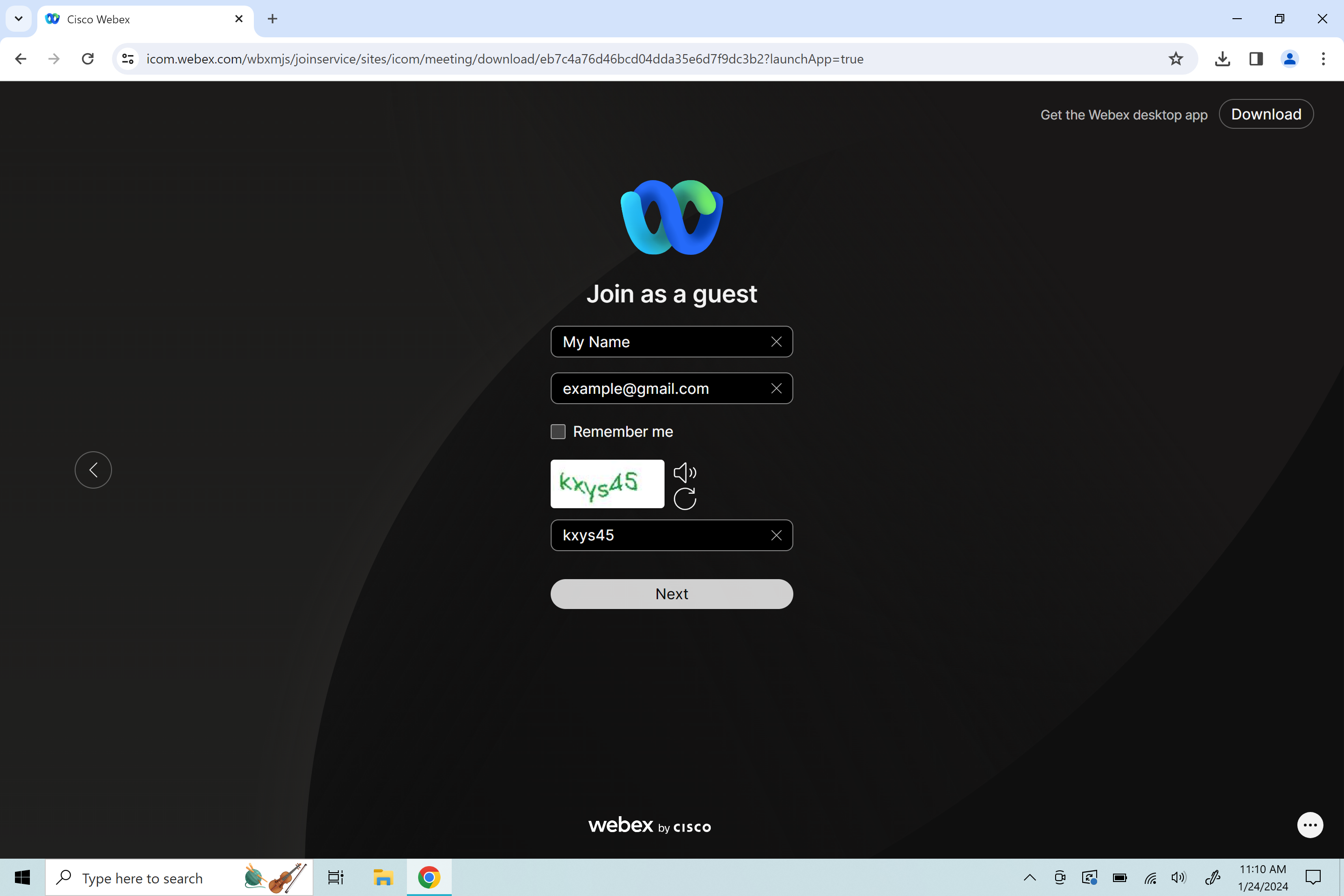
App Interface Overview
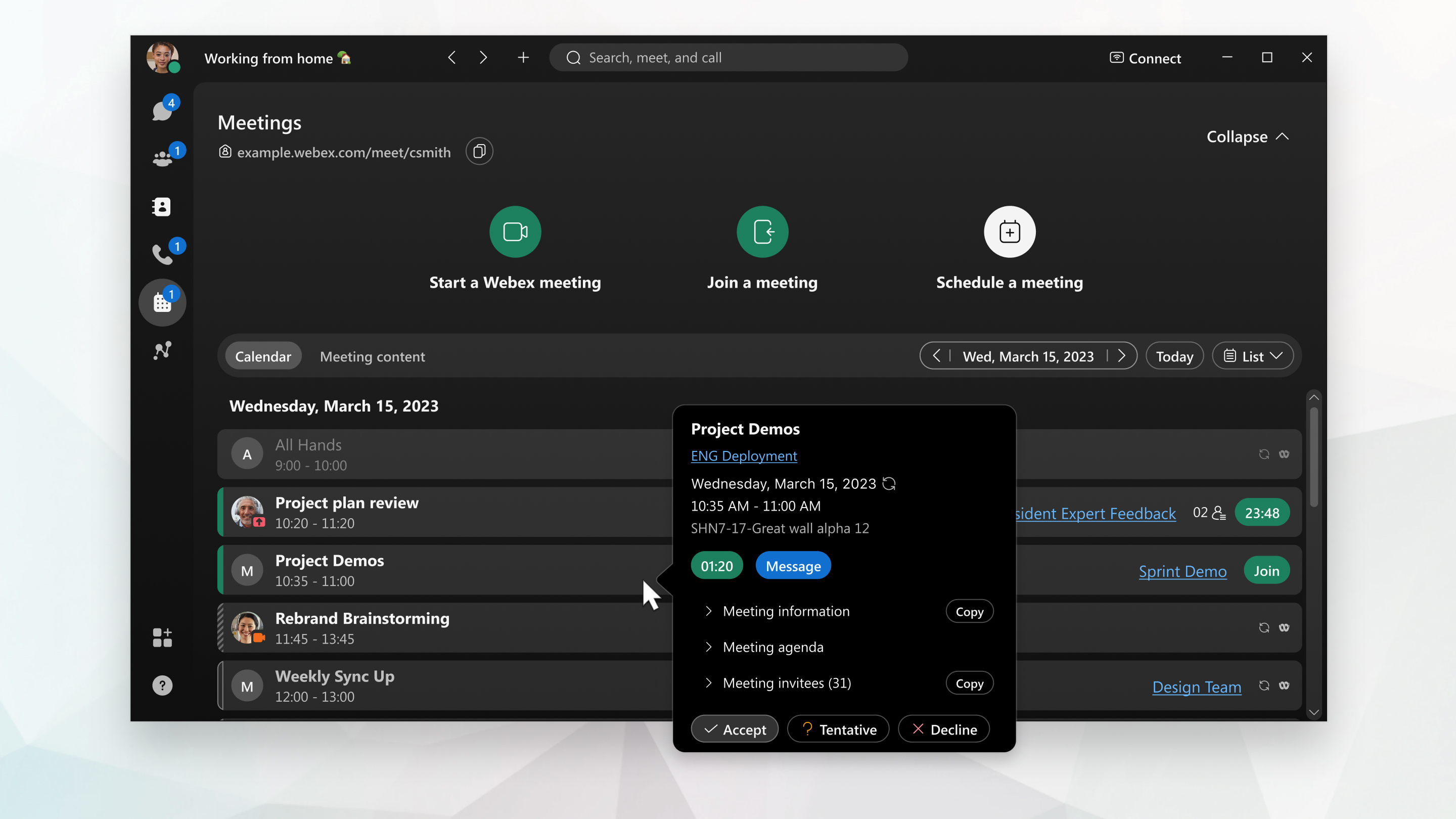
The main dashboard allows you to start meetings, schedule events, and view your upcoming calendar.
Pro Tip: Test Your Audio
Before joining, click on your profile picture > Settings > Audio & Video to test your microphone and speakers.
Installation Guide for iOS & Android
Launch & Permissions
Open the app. You will be asked to allow access to your Microphone and Camera. Please tap "Allow" or "While using the app" to ensure you can be seen and heard.
Join the Meeting
Tap the meeting link from your email, or open the app and tap "Join Meeting". Enter the meeting number and your name.
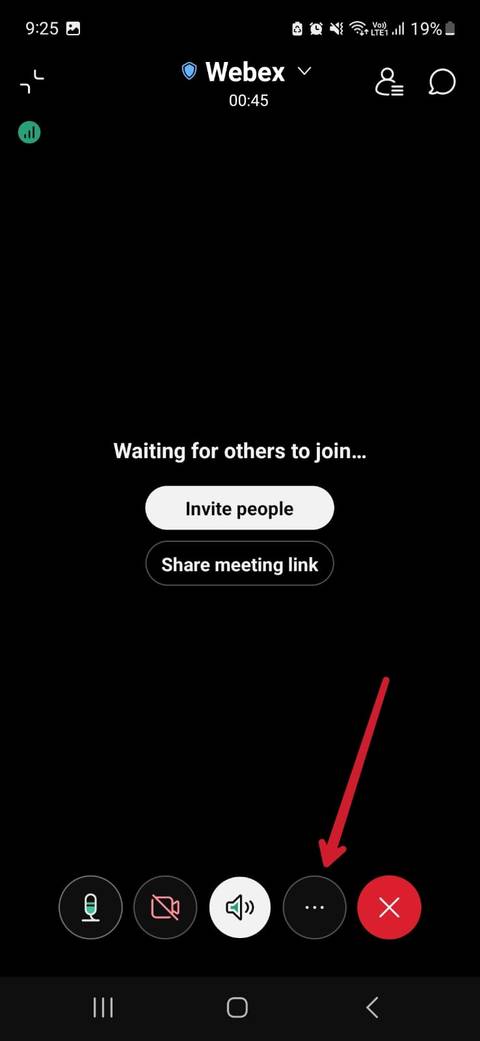
Meeting Controls Guide
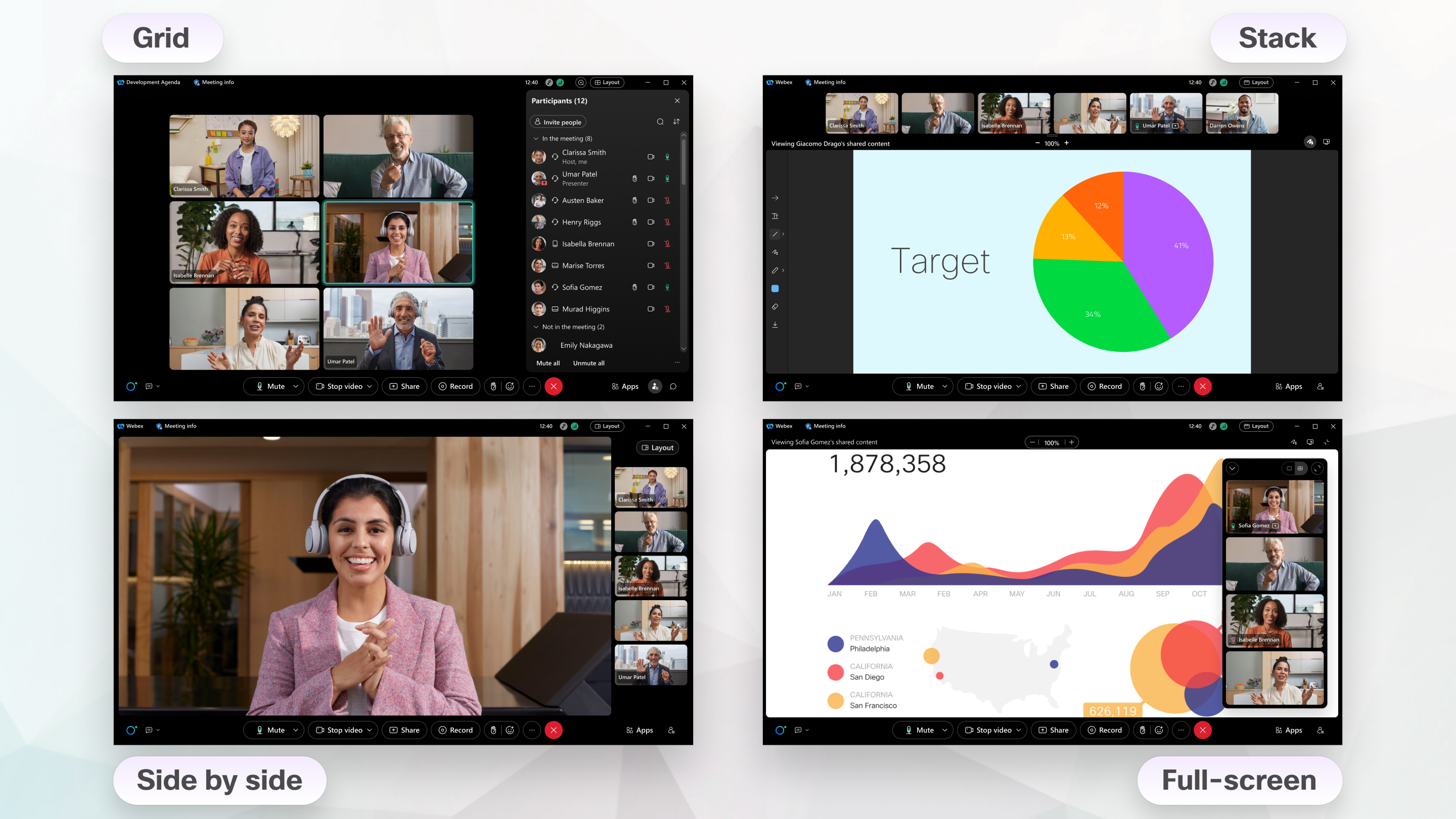
Mute / Unmute
Click the microphone icon to toggle your audio. Red means muted.
Start / Stop Video
Click the camera icon to turn your webcam on or off.
Chat
Open the chat panel to send messages to everyone or specific participants.